Skip to Content

- 主頁
- 關於
- 服務
- 常見問題
-
最新消息
- Phishing Alert: Response for you’re doing
- Phishing Alert: [Name] Executive Officer
- [Action Needed] CUHK1x Wi-Fi Certificate Update on 19 Dec 2025
- Elevate Your Cybersecurity Knowledge with IS Awareness Program
- CUHK Login Service Maintenance on 29 Dec (7:00 PM – 8:00 PM) with a 5-min Outage
- 支援


 網上服務台(
 (+852) 39438845
Update on Microsoft 365 Email and OneDrive for Alumni
Summary:
Due to the “Storage Changes for Microsoft 365 Education | Microsoft Education” several measures will be implemented to free up storage space and improve loading times in your primary mailbox.
Your mailbox size will become 2GB only and OneDrive service will be terminated. Details of the implementation is tabulated below:
| Date | What will happen? | What should you expect? |
| Week of 26 May 2025 |
|
|
| Week of 16 Jun 2025 |
|
|
| Jun – Dec 2025 |
|
|
| 16 Dec 2025 |
|
|
Note:
- *Read this article on how to download or transfer your files to another storage option.
- *After OneDrive termination, stored files cannot be recovered.
Exchange Online Archive Service:
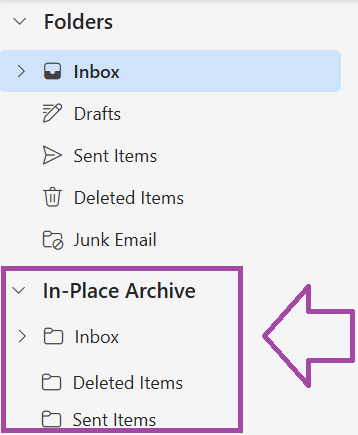
A new Online Archive mailbox will appear below your primary mailbox, showing as “In-Place Archive – [Your Name]” in Outlook Web.
Auto Removal of Deleted Items:
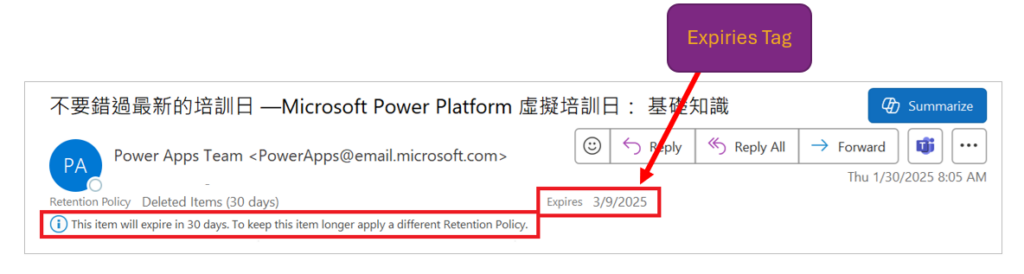
Items in your “Deleted Items” folder that have been there for over 30 days will be automatically removed. This includes emails, contacts, notes, calendar entries, and tasks in Outlook. An “Expires” tag will indicate when they will be removed.
Some easy tips here to help you manage email storage size to stay within the limit:
- Check Email Storage Usage
- Remove old emails from your mailbox regularly.
- Use Email Online Archive: For the setup steps, please refer to What is Exchange Online Archive and how to use?
- Empty Deleted Items Folder regularly, though items are auto removed after 30 days.
- Empty Junk Email Folder regularly.
- Avoid Cc yourself when sending an email, as a copy is available in Sent Items Folder.
- *Back up Outlook Email to save your emails, contacts, calendar, tasks, and notes. Make sure you have backed up items from the Online Archive folder as well.
(*Note: The new Outlook does not currently support full email backup. Please switch to the classic Outlook to proceed.)
| 1. | Who is impacted by the Storage Reduction? |
| All account holders are impacted in this change. | |
| 2. | How do I download my files from OneDrive to my PC/another repository? |
| Please read Knowledge Base article on how to do. | |
| 3. | As always, be mindful of data security and confidentiality when using public cloud storage services. |




© 2025 香港中文大學 版權所有